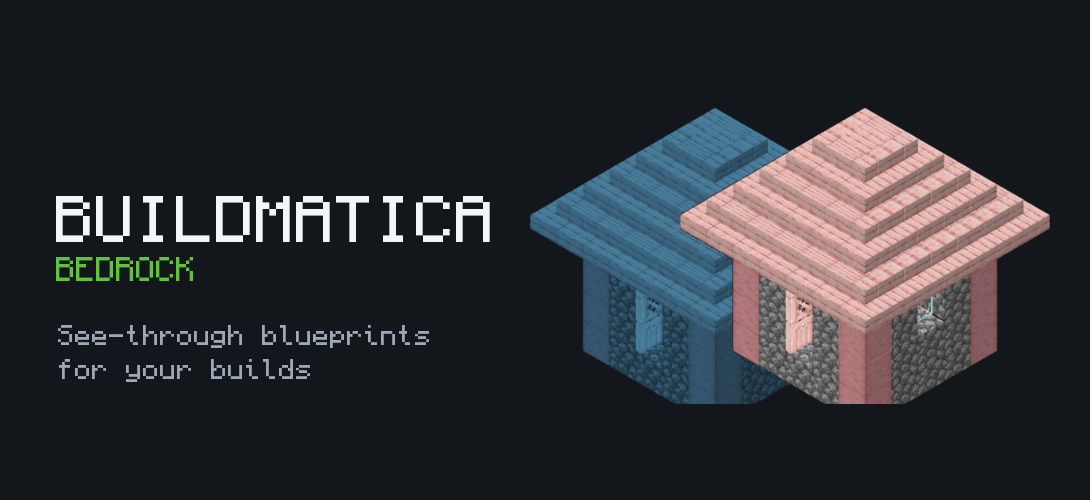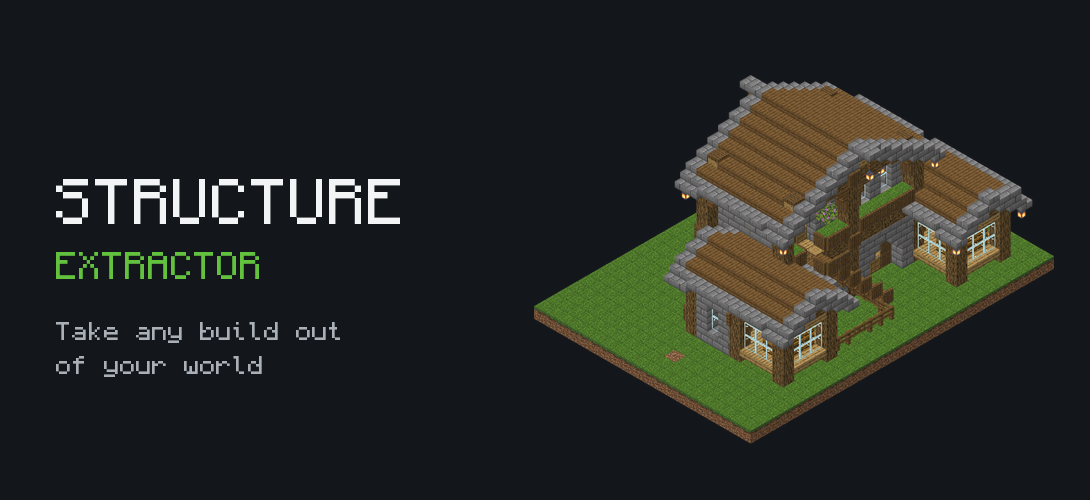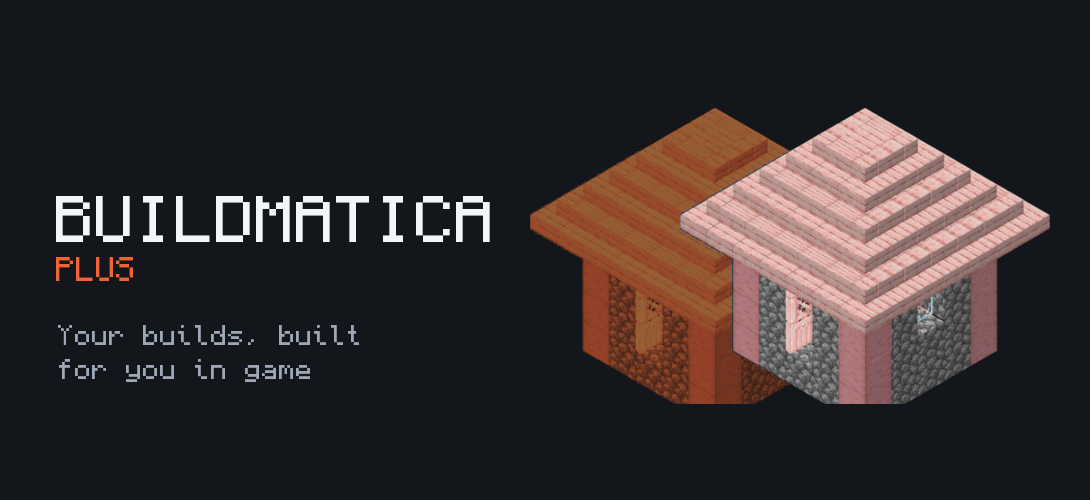
Buildmatica Plus is Buildmatica made into an add-on. It still shows any build or farm as a hologram in your world, but it can also place the blocks for you: all at once, one layer at a time, or just by looking or walking around. In Survival it uses your own blocks, so it is still fair.
Buildmatica or Buildmatica Plus?
Both are Buildmatica. The difference is what they are and where they work.
- Buildmatica is a texture pack. You turn it on in Global Resources, it works on servers and Realms, and you place every block yourself.
- Buildmatica Plus is an add-on. You add it to a world, and you get easy placing (Instant, Layers, Look and Walk) plus features a texture pack cannot have, because placing blocks needs a behavior pack.
Plus already has everything from Buildmatica inside, so you do not need both. Use Buildmatica on servers, and Buildmatica Plus in your own worlds or anywhere you can add add-ons.
Is it achievement friendly?
Yes. Buildmatica Plus does not need cheats or experimental toggles, so you can keep earning achievements while you use it.
Step 1: Make your builds pack
Open the Buildmatica Plus site. Pick ready builds from Community builds, or drop in your own .mcstructure, .litematic, .schem or .nbt file. Give each build an item, the same way as in my Buildmatica guide. You get a .mcaddon file. Open it and Minecraft adds it to the game.
Step 2: Turn it on in your world
Open your world's settings and turn on two packs: Buildmatica Plus and your builds pack. Put your builds pack above Buildmatica Plus, in both Resource Packs and Behavior Packs. Always keep Buildmatica Plus below your builds pack.
Step 3: Show the hologram
Place an armor stand and give it your build's item. The hologram shows up. Hold a stick and use it to open the menu: right click on PC, or press and hold the screen on mobile.
Step 4: Line it up
Before you build, open the Place tab to move the build, turn it and change its height until it sits exactly where you want it.
Step 5: Pick how it gets built
- Instant: the whole build is placed in one go.
- Layers: the build goes up by itself, one layer at a time, so you can watch it grow.
- Look: blocks are placed where you look, so it still feels like you are building it.
- Walk: blocks are placed around you as you walk.
Pick One in the Place tab to see only the layer you are on. When you finish it, it moves to the next layer by itself.
Blocks in Survival
In Survival, Plus takes blocks from your inventory. You can also let it take blocks from chests near your build or from shulker boxes you carry. If you just want the build done without collecting anything, turn on Free blocks in Settings.
Red beams point at blocks that are still missing, so nothing gets left out.
Tips
- If nothing happens, check the pack order. Your builds pack must be above Buildmatica Plus in both lists.
- Try Layers on a small build first so you can see how it works.
- Use Look or Walk if you want building to still feel like building.