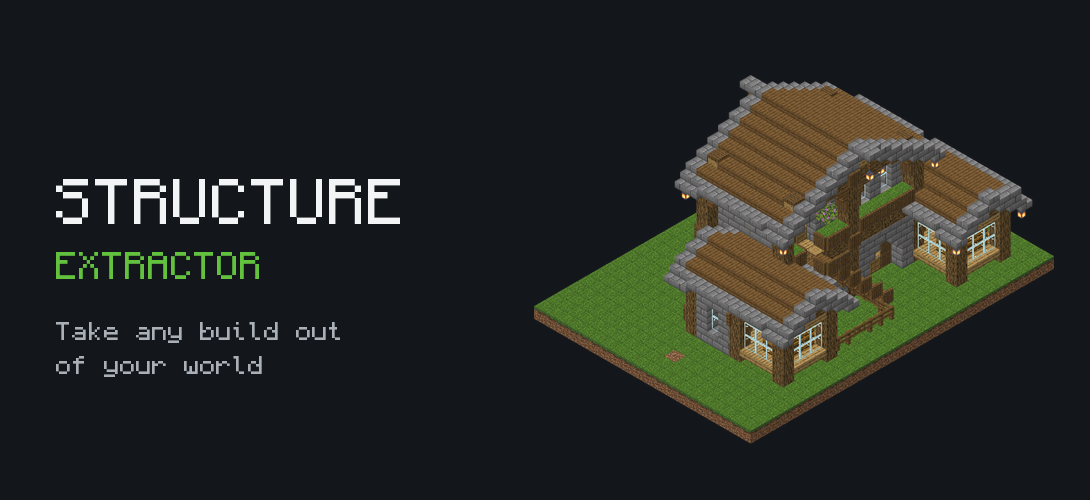
Sometimes you want to copy a build out of a world: to share it, to back it up, to move it into another world, or to put it in a Buildmatica builds pack. Doing that with a structure block works, but it is slow for big builds and you have to type every corner yourself. My Structure Extractor lets you pick the build on a map of your world and download it in a few clicks. Your world never leaves your device, because everything runs in your browser.
Step 1: Get your world file
Open Minecraft, go to your world's settings, scroll down and press Export World. You get a .mcworld file. A .mctemplate or a zipped world folder works too. If the world is on a Realm, download it from the Realm settings first.
Step 2: Drop it in
Open the Structure Extractor and drag the file into the World box, or tap the box to pick it. A map of your world appears. You can move it, zoom it, jump to your spawn, jump to where you last stood, or type coordinates and press Go to.
Step 3: Find and select your build
Pick the dimension first: Overworld, Nether or The End. Then press Select area and drag a box over your build on the map. The corner numbers fill in by themselves.
If you prefer typing, turn on Show Coordinates in the game, stand on one corner of your build and write down the X, Y and Z. Do the same on the opposite corner and type both into the boxes.
Step 4: Grab it and check it in 3D
Give the build a name and press Get build. You can spin it around in the 3D view to make sure you got everything. Under it, a block list shows every block in the build. Tap a block to swap it for another one everywhere, or remove it from the whole build.
Step 5: Clean it up
Use Edit in 2D to fix the build one layer at a time:
- Eraser rubs out blocks, and Paint puts down the block you chose.
- Replace and Change turn blocks into another block.
- Fit to build cuts off all the empty space around your build.
- Undo and Redo are always there, and Bring back restores blocks that were there at the start.
This is great for removing grass, dirt or trees that got caught in the selection.
Step 6: Save it
Press Download and you get a .mcstructure file. Load it in any world with a structure block set to Load, or add it to Buildmatica to build it again block by block in Survival.
Good to know
- Big selections take longer to load, so select only the build you need.
- Make sure you picked the right dimension. A build in the Nether will not show on the Overworld map.
- Exporting a world does not change it, so your original world stays safe.