Your Minecraft world can hold hundreds of hours of work. One bad add-on, a broken update or a lost phone is all it takes to lose it. The good news is that Bedrock has a simple way to save a full copy of any world as a single file. This guide shows you how to export a world, how to import it again, and a few habits that keep your builds safe.
What is a .mcworld file?
When you export a world, Minecraft packs the whole thing into one .mcworld file. It has your terrain, builds, chests, players and the add-ons the world uses. You can keep it as a backup, send it to a friend, or open it on another device. A few of my tools, like the Structure Extractor and the Hardcore Reviver, also work with .mcworld files.
How to export a world
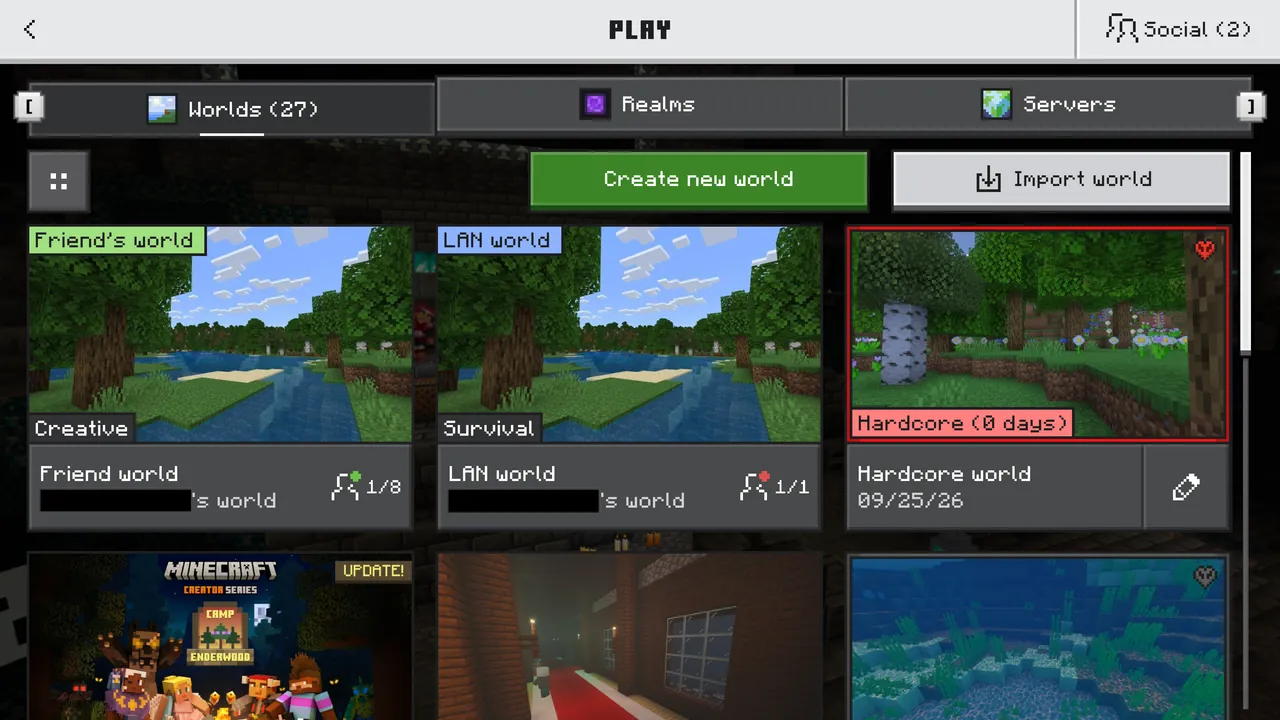
- Open Minecraft and go to your world list. Do not open the world.
- Press the pencil (edit) button next to the world.
- In the Game settings, scroll all the way down.
- Press Export World and choose where to save it.
On Windows you pick a folder. On Android and iPhone, your device asks where to save or which app to share it with. Saving it to a cloud drive like Google Drive or iCloud is a great idea, because then the backup is safe even if your device breaks.
How to import a world
Importing works the same way as installing a pack. Open the .mcworld file and Minecraft adds it to your world list.
- Windows: double-click the file.
- Android: tap it in your file manager and choose Minecraft.
- iPhone and iPad: open the Files app, long-press the file, tap Share and pick Minecraft.
The imported world shows up as a new world. Your old world, if you still have it, stays untouched.
Copy World: a quick backup inside the game
If you just want a safety copy before trying something risky, use Copy World in the same Game settings. It makes a second copy in your world list. It is faster than exporting, but the copy lives on the same device, so it will not help if the device itself is lost.

Realms
For a Realm, open the Realm settings and use the option to download the world. After that you can export it like any other world. To put a world back on a Realm, use the replace world option in the Realm settings.
When you should make a backup
- Before you turn on a new add-on in an old world.
- Before a big Minecraft update.
- Before you try commands that change a lot of blocks.
- Before you move to a new phone or computer.
- Every week or two for worlds you care about.
Common problems
- The file opens as a .zip: rename it back to .mcworld and open it again.
- "Import failed": the file did not finish downloading or got damaged. Export it again from the original device.
- Missing add-ons after import: the world remembers which packs it used. If a pack is missing, install that pack and turn it on again in the world settings.
- The world is huge: big worlds make big files. Give the export some time and keep enough free storage.
Keep more than one backup
One backup is good, two is better. Keep an older copy too, because sometimes you only notice a problem days later. Name your files with the date, like survival-2026-11-14.mcworld, so you always know which one is newest.