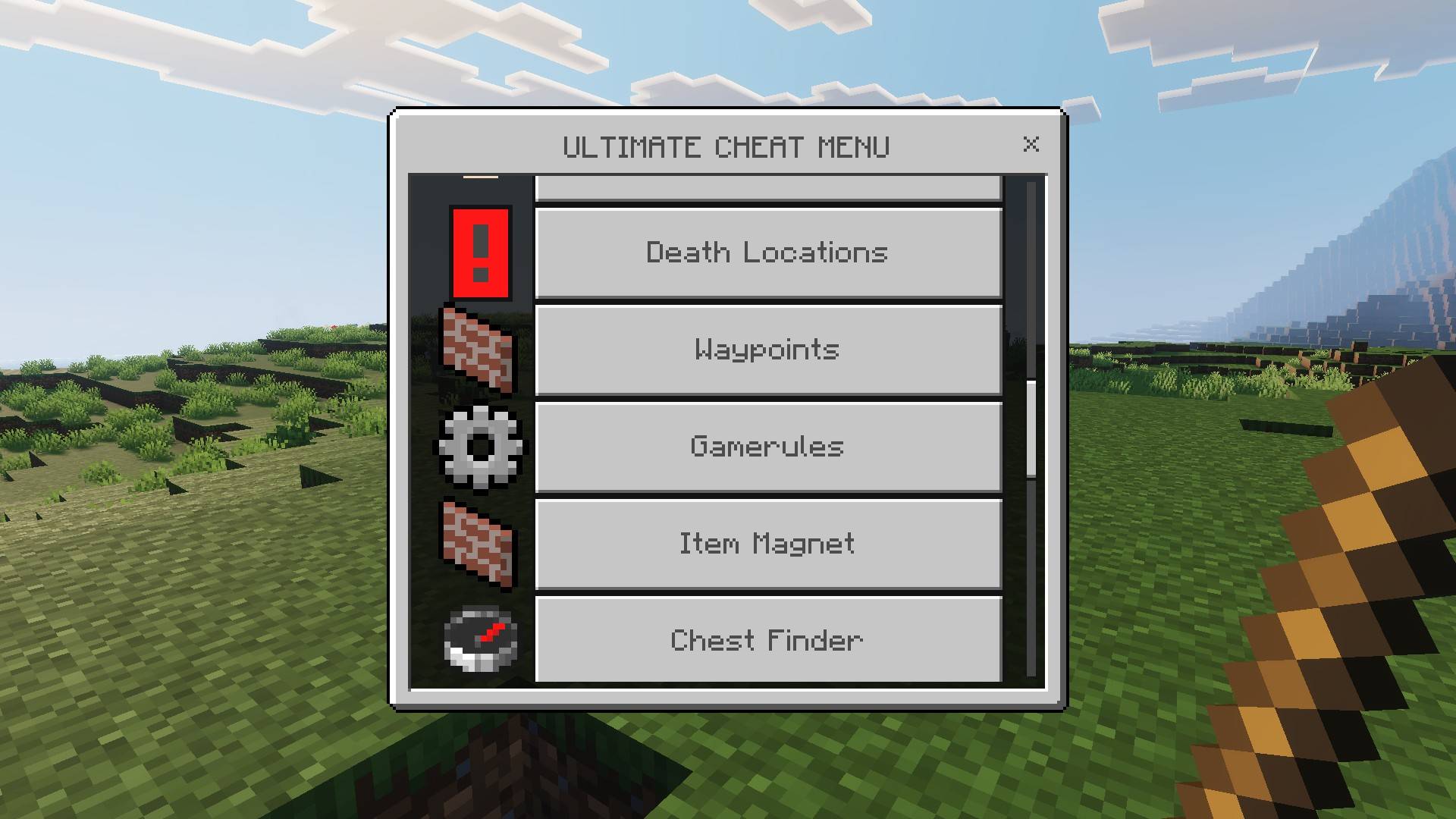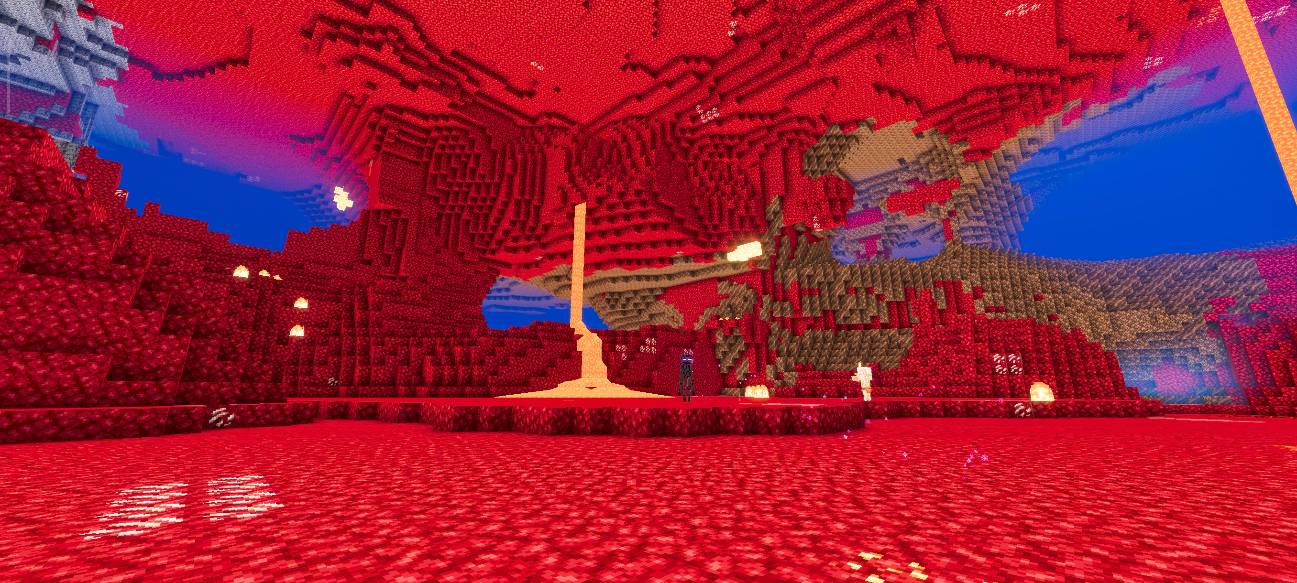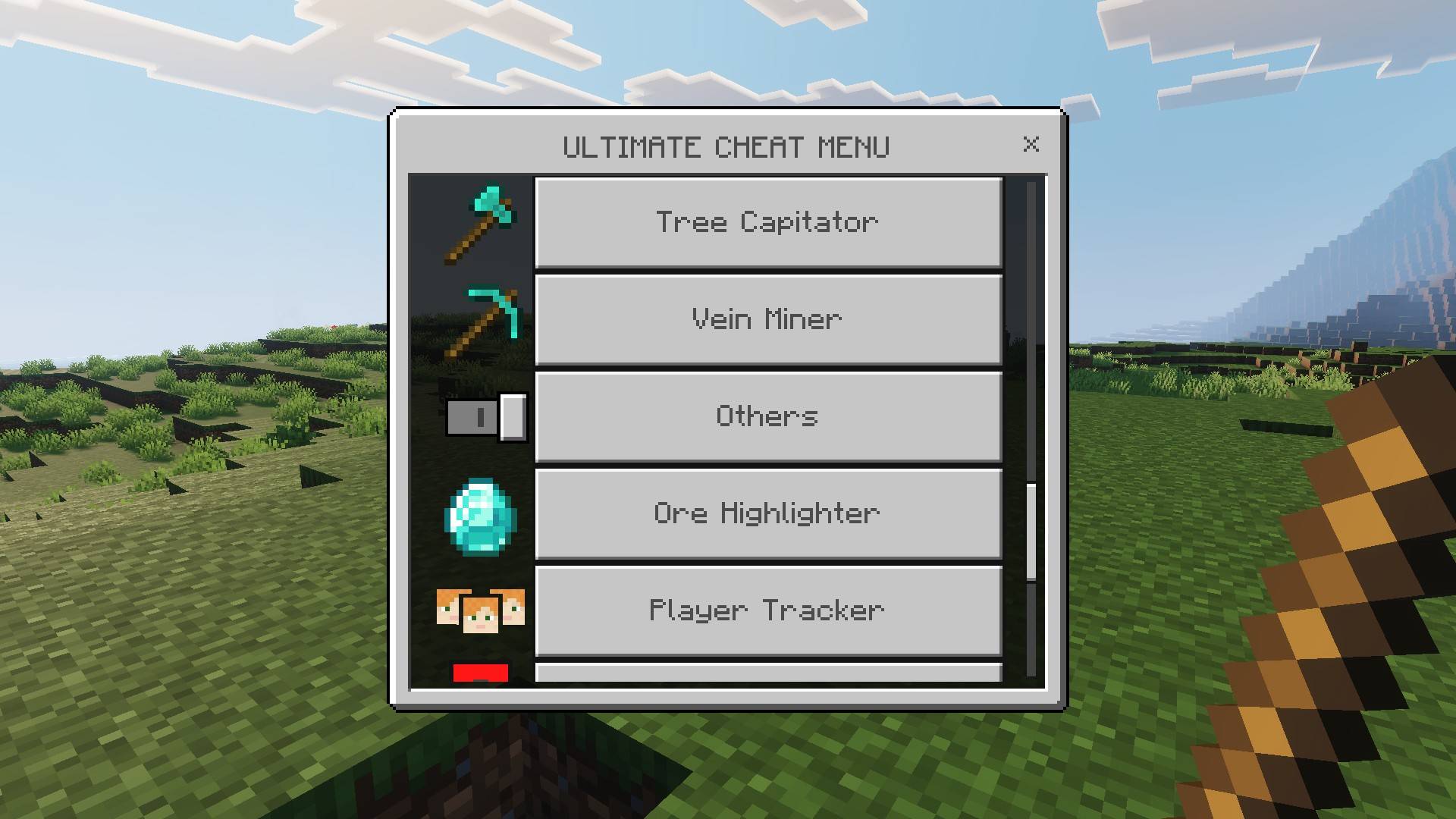
When you download Minecraft content for Bedrock, you see files with names like .mcpack, .mcaddon and .mcworld. They all open in Minecraft, but they are not the same. Knowing what each one is makes installing content much easier, and helps you spot files that are not real packs.
Resource packs and behavior packs
Bedrock content is built from two kinds of packs:
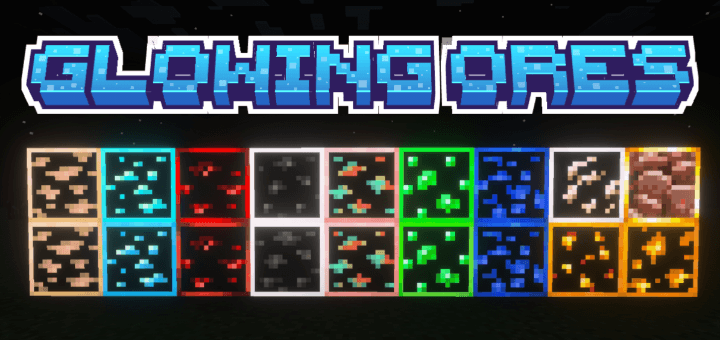
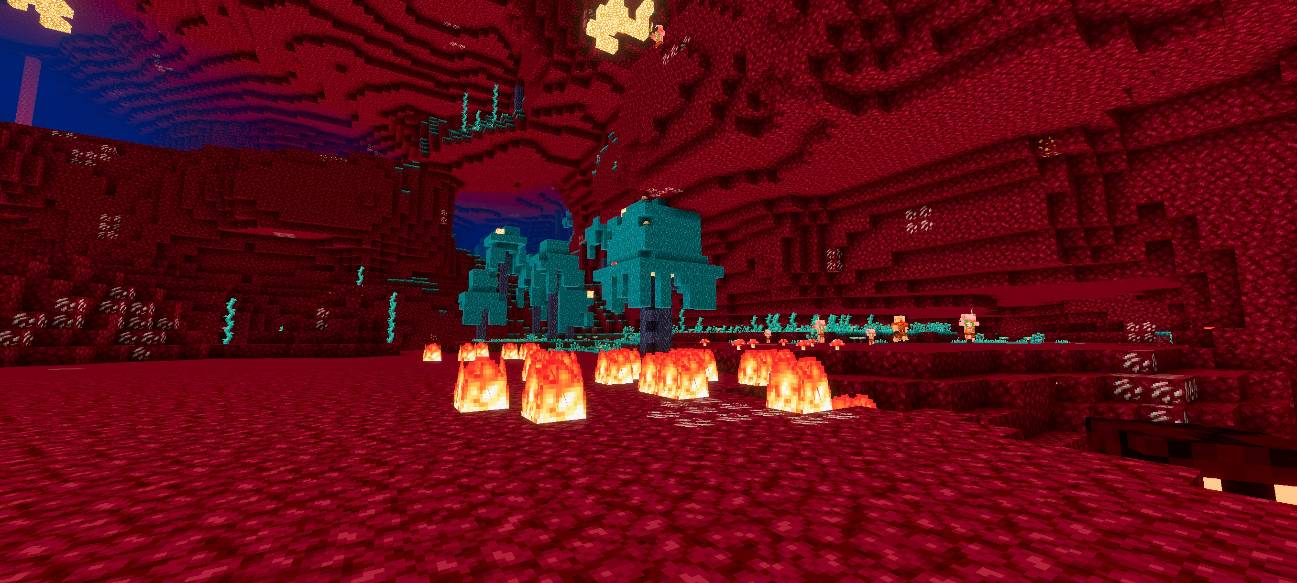
- Resource pack: changes how things look and sound. Textures, models, sounds, menus, the sky and fonts. Also called a texture pack.
- Behavior pack: changes how things work. New mobs and items, new recipes, loot, scripts and menus that do things.
Most add-ons use both: the behavior pack adds a new mob, and the resource pack gives it a model and texture.
.mcpack
One pack, either a resource pack or a behavior pack. Open it and Minecraft imports it. Texture packs are usually a single .mcpack.
.mcaddon
A bundle of packs in one file, usually a behavior pack and a resource pack that belong together. Opening it imports all of them at once. You still turn on each part in your world: the resource pack under Resource Packs and the behavior pack under Behavior Packs. Often turning on one asks you to turn on the other too.
.mcworld
A complete world with everything in it. Opening it adds a new world to your list. This is the file you get when you export a world, see how to back up and export a world.
.mctemplate
A world template. Instead of one world, it shows up when you create a new world, so you can make as many fresh copies as you like. Adventure maps and parkour maps often come like this.
.zip
All of these file types are really zip files with a different name. Some creators upload a plain .zip instead. If a .zip will not open in Minecraft:
- Look inside it. If it holds .mcpack or .mcaddon files, open those.
- If it holds a folder with a
manifest.jsonfile, rename the .zip to .mcpack and open it.
Files that are never Minecraft packs
.exe, .apk, .msi, .bat and .scr are programs, not packs. Do not open them if a site says they are an add-on. See how to download add-ons safely.
Where the files go after you import
Minecraft copies imported packs into its com.mojang folder, in the resource_packs and behavior_packs folders, and worlds into minecraftWorlds. On Windows this folder is in %APPDATA%\Minecraft Bedrock\Users\Shared\games\com.mojang on current versions. You do not need to touch it, but it is useful to know when you want to clean up old packs. See how to delete packs.