A texture pack (Bedrock calls it a resource pack) changes how Minecraft looks: blocks, items, mobs, the sky, the menus and even sounds. Installing one takes about a minute. This guide covers the two ways to turn it on, how pack order works, and what to do when a pack does not show.
Step 1: Import the pack
Open the .mcpack file you downloaded. Minecraft starts and shows "Import started" and then "Successfully imported". On iPhone and iPad, use the Files app, long-press the file, press Share and choose Minecraft. Full details for every device are in my install guide.
Step 2: Turn it on
You have two choices.
For every world: Global Resources
- Go to Settings and open Global Resources.
- Find the pack under My Packs.
- Press it and press Activate.
The pack now works in every world and on every server you join. This is best for packs that change the look of the game, like glowing ores packs or UI packs.
For one world: Resource Packs
- Press the pencil button next to a world.
- Open Resource Packs in the list on the left.
- Press the pack under Available and press Activate.
The pack is saved inside that world. Friends who join it get the pack too.
Pack order
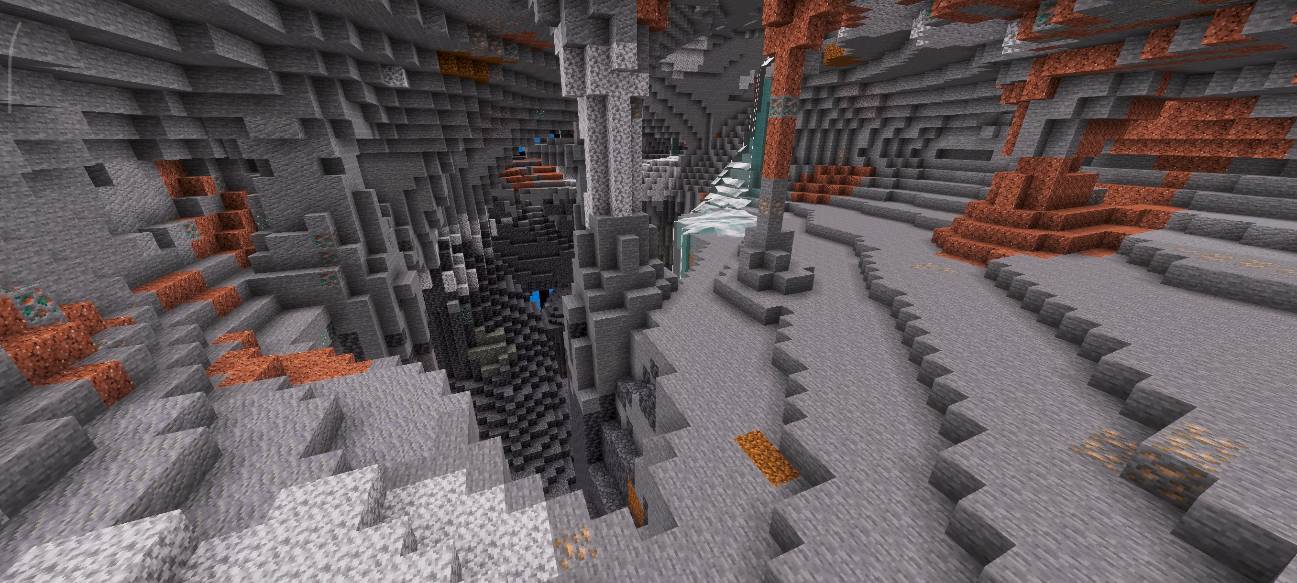
When two packs change the same thing, the pack on top of the active list wins. Use the up and down arrows to move packs. A simple rule: put the pack you care about most at the top.
Pack options
Many packs have extra options behind a gear button, like different glow styles or item sizes. See pack settings and subpacks.
The pack does not show. What now?
- Check that it is active. It should be in the Active list, not only in My Packs.
- Check the order. Another pack above it might be changing the same textures.
- Restart the game after big changes.
- Vibrant Visuals packs only work when Graphics Mode is set to Vibrant Visuals. See the Vibrant Visuals guide.
- On a server, the server's own packs load above yours, so some of your changes may not show there.
More fixes in add-on not working? Common fixes.
Texture pack or add-on?
A texture pack only changes how things look and sound, so it never turns off achievements. An add-on also has a behavior pack that changes how the game works, and you turn that on in the world's Behavior Packs list. Read Bedrock file types explained to see the difference.