A lot of texture packs come in more than one version. One pack might have a strong glow and a soft glow, or tiny items and slightly smaller items. Instead of making you download five different packs, Bedrock lets a pack carry subpacks, and newer packs can also have settings with sliders and toggles. Many people never find these options, because they hide behind a small gear button. This guide shows you where they are.
Where to find them
- Go to Settings, then Global Resources. For a pack that is only on one world, open that world's settings and go to Resource Packs.
- Make sure the pack is in the Active list.
- Press the pack once to select it. If it has options, a gear button appears.
- Press the gear to open the pack's options.
If you do not see a gear, the pack simply has no extra options.
Subpacks
A subpack is a different version of the same pack. In the options you see a slider or a list. Move it to the version you want, then go back. Minecraft reloads the pack with your choice.
Some examples from my own packs:
- Small Items has four sizes: Small, Smaller, Smallest and Tiny.
- Glowing Ores has Outlined Ores, Outlined Ores Glow+, No Outline Ores and Animated Glowing Ores.
- Glow Xray has Xray 100%, where almost everything is see-through, and Xray Essential, where only stone, deepslate and netherrack are see-through so lava and water stay visible.
Pack settings
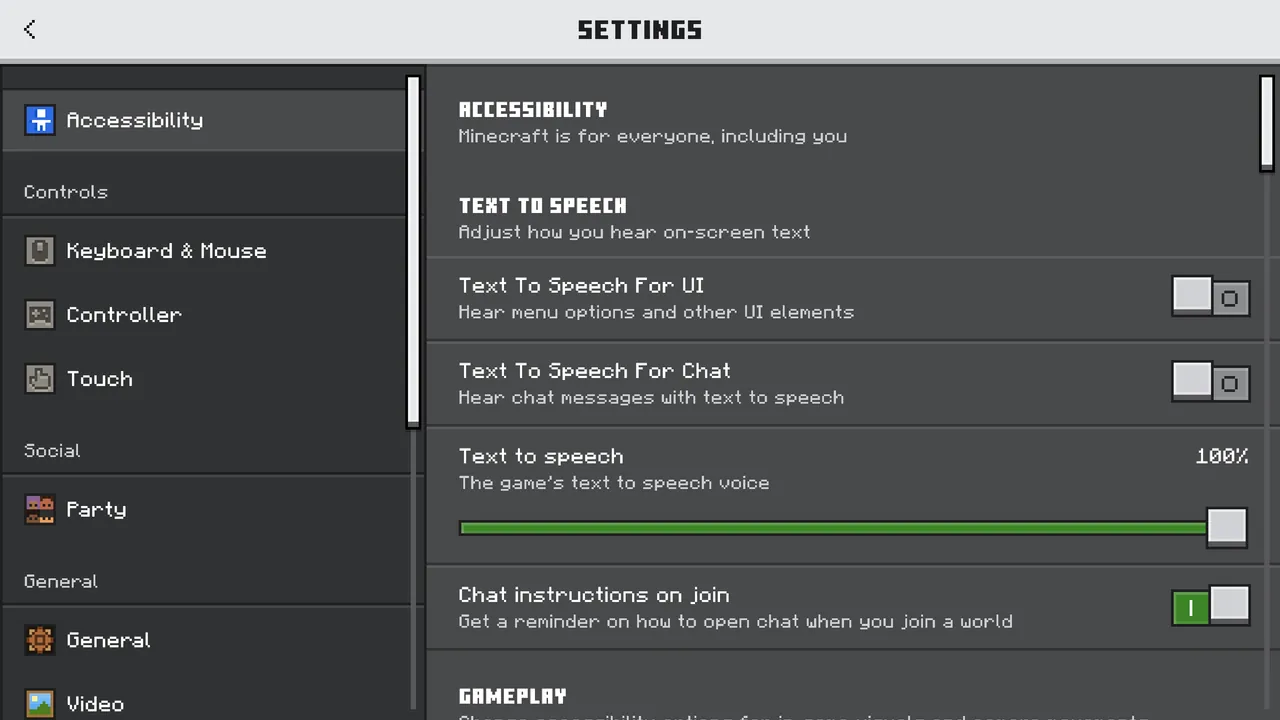
Newer packs can show real settings instead of one slider: on and off switches, sliders with numbers, and lists. Buildmatica uses this for things like how see-through the hologram is and how layers work. You change them the same way, with the gear button, and you can come back and change them any time.
Tips
- After you change a subpack, give the game a moment to reload. Big packs take a few seconds.
- If a change does not show, leave the world and join it again.
- Your choice is saved, so the pack remembers it next time.
- Pack order still matters. If two packs change the same thing, the one on top wins.
Why some packs need Vibrant Visuals
Some packs, like Glowing Ores, Glow Xray and Full Bright, use the newer lighting features in Bedrock. They only work when the game's graphics mode is set to Vibrant Visuals in the video settings, on devices that support it. If one of these packs looks like it does nothing, check this setting first.