Nothing ruins a Minecraft session like lag. Low FPS makes everything choppy, and world lag makes blocks and mobs freeze. The good news is that a few settings make a huge difference. This guide goes from the biggest fixes to the smaller ones.
First: what kind of lag is it?
- Low FPS: the screen is choppy and turning the camera feels slow. Your device is struggling to draw the game.
- World lag: the screen is smooth, but mobs freeze, blocks come back after you break them, or items take time to drop. The world or server is struggling.
- Connection lag: only happens on servers or Realms. Your internet connection is the problem.
Video settings that help the most
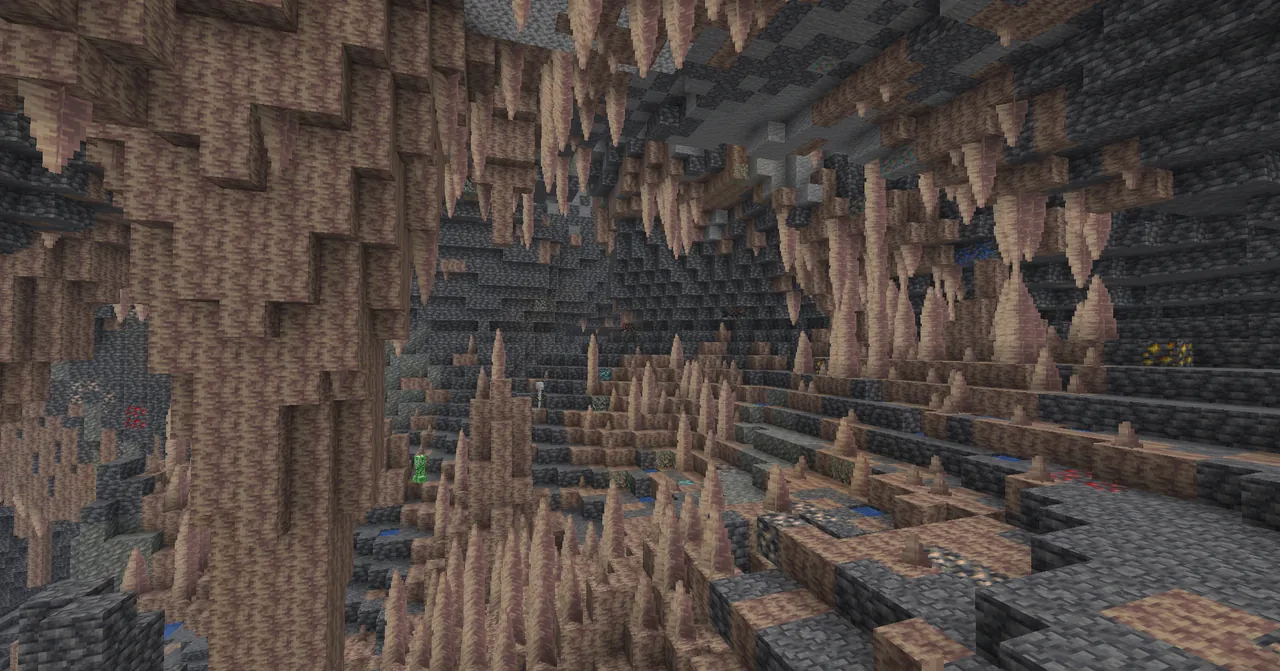
Open Settings > Video:
- Render Distance: the biggest one. Lower it until the game runs smoothly. On phones, 8 to 12 chunks is a good start.
- Graphics Mode: Vibrant Visuals looks amazing but is heavy. Switch to the normal mode on weaker devices.
- Fancy Graphics, Beautiful Skies, Smooth Lighting: turn these off for a big boost.
- Fancy Leaves and Fancy Bubbles: off.
- Particles: lower them. Explosions and big farms create a lot.
- Field of View: a lower FOV draws less at once.
World settings
In the world's settings, Simulation Distance sets how far away the world keeps working. A lower number means less work for your device. 4 chunks is a good choice for weaker devices.
Packs
- Big texture packs with high resolution textures can lower FPS a lot. Try playing without them to compare.
- Heavy add-ons with many custom mobs or scripts can cause world lag. Turn them off one at a time to find the heavy one.
- Use simple packs where you can. My Full Bright pack, for example, lets you see without torches and turns off nothing heavy.
Fixes for phones
- Close other apps before you play.
- Turn off battery saver. It slows the device down on purpose.
- Let a hot phone cool down. Phones slow down when they get hot.
- Free some storage space. A full phone can lag and even crash.
Fixes for Windows
- Update your graphics drivers.
- On laptops with two graphics chips, set Minecraft to High performance in Windows graphics settings.
- Plug in your laptop charger. Many laptops run slower on battery.
World lag in your own worlds
- Too many mobs in one place, like a huge animal pen, cause lag. Keep farms reasonable.
- Lots of dropped items, hoppers and redstone clocks running all the time can slow the world.
- Big TNT explosions and lava flows create heavy work for a short time.
Still lagging?
If the game also crashes, see how to fix Minecraft Bedrock crashing.