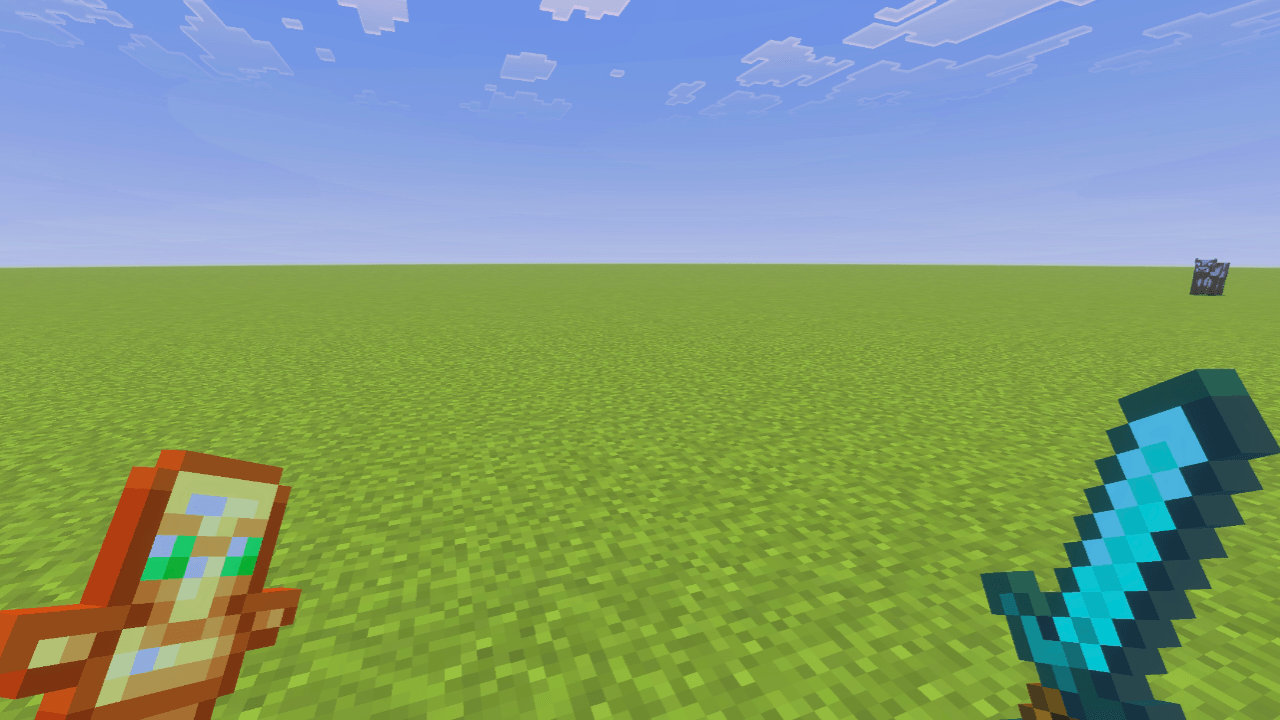
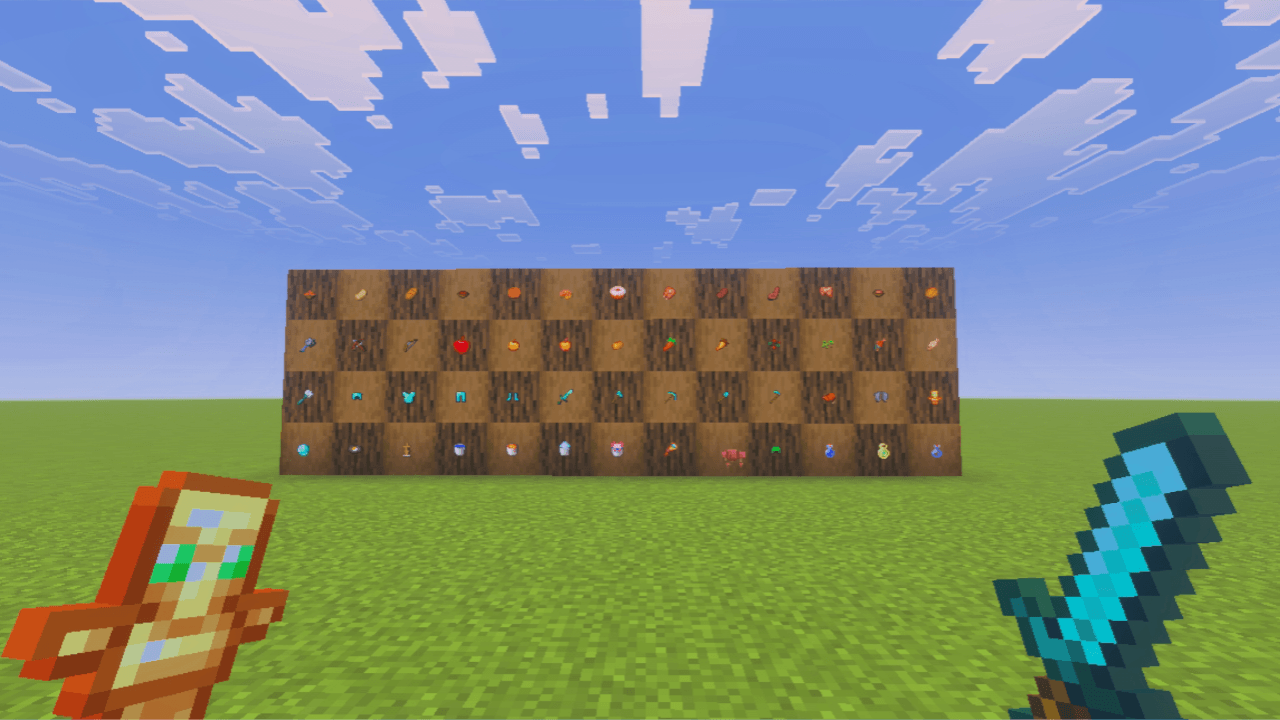
The item you hold in Minecraft takes up a big part of the screen, especially on phones and tablets. A sword or pickaxe can cover the exact spot you are trying to look at. Small Items makes every tool and item in your hand smaller, so you get a cleaner, more open view while you play.
Four sizes
The pack comes with four subpacks, so you can pick how small you want items to be:
- Small: slightly smaller items. A gentle change.
- Smaller: a clear difference, with less of the screen covered.
- Smallest: items take very little room.
- Tiny: the smallest option, for the most open view.
The smaller you go, the more open the screen feels. Try a couple of sizes to see what you like.
How to choose a size
- Install the pack. See my install guide if you need help.
- Go to Settings > Global Resources and activate Small Items.
- Select it and press the gear button.
- Pick the size you want and go back.
More about this menu in pack settings and subpacks.
Who it is great for
- Mobile players, because phone screens are small and every bit of space counts.
- PvP players, who want to see the other player clearly.
- Builders, who want to see exactly where a block will go.
- Anyone recording videos who wants a cleaner look.
Good to know
- It only changes items and tools. Blocks stay the same size.
- Because it edits item textures, a few items can look a little different, and some, like the apple, stay almost the same.
- If you use another texture pack that changes items, put the pack you want to win on top of the list.